
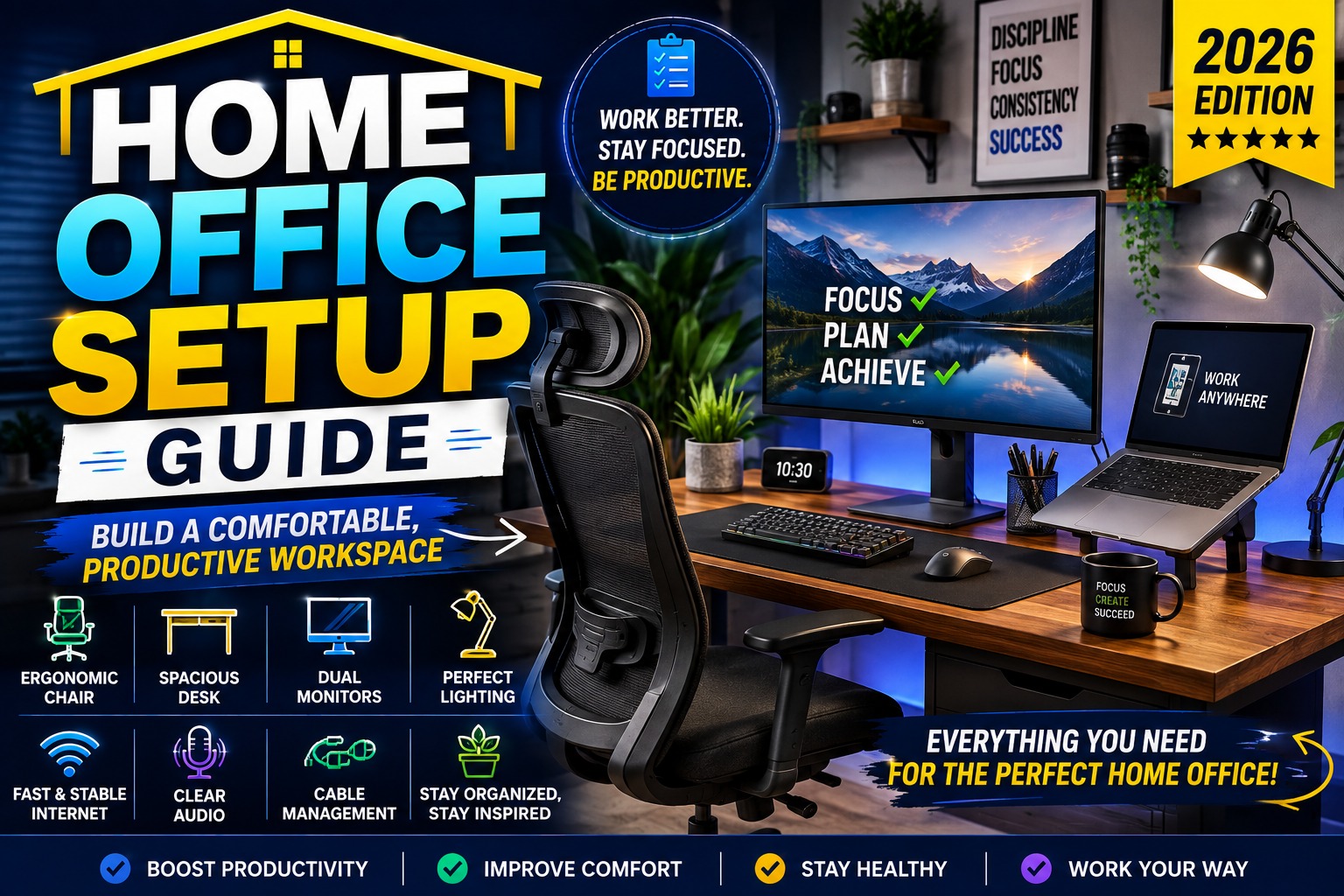

Home Office Setup Guide: How to Build a Productive Workspace in 2026
Working from home can be comfortable and productive, but only if your workspace is designed properly. A poorly organized desk, uncomfortable chair, inadequate lighting, or distracting environment can make it difficult to stay focused throughout the day.
A good home office setup doesn't have to be expensive. The goal is to create a workspace that supports productivity, comfort, organization, and long-term use.
Whether you're working remotely, running a small business, studying, programming, creating content, or managing an online business, this Home Office Setup Guide will help you build a practical and modern workspace.
Quick Home Office Setup Checklist
Before buying anything, start with these essentials:
- Comfortable ergonomic office chair
- Stable desk with enough workspace
- Laptop or desktop computer
- External monitor
- Comfortable keyboard and mouse
- Good desk lighting
- Reliable internet connection
- Headphones or computer speakers
- Cable management
- Power strip or surge protector
- Webcam for video meetings
- Storage for accessories
- Clean and organized workspace
You don't need to purchase everything at once. Start with the items that have the biggest impact on your daily comfort and productivity.
Home Office Setup Guide
1. Choose the Right Location
The first step in creating a home office is choosing the right location.
Ideally, your workspace should be somewhere that allows you to concentrate without constant interruptions.
A spare bedroom is excellent, but you don't necessarily need an entire room.
You can create an effective office in:
- A bedroom corner
- Living room
- Guest room
- Dedicated study
- Basement
- Small apartment area
The most important factor is consistency.
Having a dedicated workspace helps create a psychological separation between work and personal activities.
Home Office Setup Guide
2. Choose a Good Desk
Your desk is the foundation of your home office.
A desk should provide enough room for your computer, monitor, keyboard, mouse, and other accessories without making the workspace feel overcrowded.
For most people, a desk between 47 and 63 inches wide provides a comfortable amount of workspace.
Consider these features:
- Strong construction
- Sufficient depth
- Comfortable height
- Cable management
- Durable surface
- Enough space for a monitor
- Room for accessories
If you use two monitors, a larger desk becomes particularly useful.
Home Office Setup Guide
3. Invest in a Comfortable Office Chair
A chair is arguably one of the most important components of a home office.
If you spend eight hours a day working at a desk, an uncomfortable chair can quickly become frustrating.
Look for an ergonomic chair with:
- Adjustable seat height
- Adjustable armrests
- Lumbar support
- Breathable material
- Adjustable backrest
- Comfortable seat cushion
- Headrest if preferred
Don't choose a chair solely because it looks attractive.
Comfort and adjustability should be the priority.
For more detailed recommendations, consider creating an internal link to your article about Best Office Chairs for Comfort and Productivity.
Home Office Setup Guide
4. Choose the Right Computer
Your computer should match your workload.
You don't need an expensive workstation if your daily tasks consist mainly of email, documents, and web browsing.
Basic office work
A laptop with:
- 8–16GB RAM
- 256–512GB SSD
- Modern processor
is generally sufficient.
Professional productivity
Consider:
- 16GB RAM
- 512GB–1TB SSD
- Modern Core Ultra, Ryzen, or Apple Silicon processor
Creative work
For video editing, 3D work, and demanding applications, prioritize:
- 32GB RAM
- 1TB+ SSD
- Powerful CPU
- Dedicated GPU
Choosing the right computer prevents you from spending money on performance you don't actually need.
Home Office Setup Guide
5. Add an External Monitor
An external monitor can dramatically improve a laptop-based workspace.
Instead of constantly switching between windows, you can keep multiple applications visible simultaneously.
For example:
Monitor 1: Work application
Monitor 2: Browser, email, or communication
This is particularly useful for:
- Programmers
- Writers
- Designers
- Financial workers
- Researchers
- Content creators
A 27-inch monitor with a high-resolution display is an excellent starting point for many home offices.
Home Office Setup Guide
6. Choose the Right Monitor Resolution
Monitor resolution affects how much information you can see on the screen.
Full HD
Good for:
- Basic office work
- Budget setups
- Secondary monitors
1440p
Excellent balance for:
- Productivity
- Programming
- Research
- Photo editing
4K
Best for:
- Content creation
- Professional photography
- Video editing
- High-detail work
For most productivity-focused home offices, 1440p is an excellent sweet spot.
Home Office Setup Guide
7. Use a Good Keyboard and Mouse
The keyboard and mouse are two devices you'll interact with constantly.
Therefore, comfort should be more important than appearance.
Keyboard
Look for:
- Comfortable key travel
- Quiet operation
- Reliable wireless connection
- Ergonomic design
- Backlighting if useful
Mechanical keyboards can provide excellent typing feedback, but they're not necessary for everyone.
Mouse
A good productivity mouse should provide:
- Comfortable shape
- Accurate tracking
- Multiple programmable buttons
- Long battery life
- Smooth scrolling
For people who work for many hours each day, an ergonomic mouse can be particularly beneficial.
Home Office Setup Guide
8. Improve Your Desk Lighting
Lighting is often overlooked when designing a home office.
Working in a dark room while staring at a bright monitor can make the environment feel uncomfortable.
A desk lamp can provide focused illumination without taking up much space.
Consider:
- Adjustable brightness
- Adjustable color temperature
- Flexible positioning
- Low-glare lighting
Natural light is also excellent when available.
Place your desk near a window if possible, but avoid positioning the monitor directly in front of a bright window.
Home Office Setup Guide
9. Improve Your Webcam
Video meetings are now an important part of many remote jobs.
A built-in laptop webcam may be sufficient for occasional meetings, but an external webcam can provide:
- Better image quality
- Improved exposure
- Better framing
- Higher resolution
- More flexible positioning
A 1080p webcam is generally sufficient for professional video calls.
If you create content or stream regularly, a higher-quality camera may be worthwhile.
Home Office Setup Guide
10. Choose the Right Microphone
Clear audio is often more important than having an expensive camera.
A dedicated USB microphone can significantly improve your voice quality during:
- Zoom meetings
- Google Meet calls
- Podcasts
- YouTube videos
- Live streaming
- Online courses
Position the microphone relatively close to your mouth while avoiding unnecessary background noise.
For content creators, our Microphone for Streaming article can serve as a useful internal link.
Home Office Setup Guide
11. Use Headphones or Computer Speakers
Your audio setup depends on how you work.
Headphones
Better for:
- Shared homes
- Video meetings
- Focus
- Music
- Gaming
Speakers
Better for:
- Private offices
- Music
- Movies
- General computer use
If you want better sound without wearing headphones all day, a compact pair of desktop speakers can be a good addition.
You can also internally link this section to your Best Computer Speakers article.
Home Office Setup Guide
12. Organize Your Cables
Cable clutter can make even an expensive home office look messy.
Instead of allowing cables to run across the desk, use:
- Cable clips
- Velcro straps
- Cable sleeves
- Under-desk cable trays
- USB-C hubs
- Cable management boxes
Try to route cables toward the rear of the desk.
A clean cable setup makes it easier to clean, move equipment, and troubleshoot connections.
Home Office Setup Guide
13. Add a USB-C Docking Station
If you're using a laptop, a USB-C docking station can simplify your entire workspace.
With a single cable, you can potentially connect:
- Monitor
- Keyboard
- Mouse
- Ethernet
- External SSD
- Webcam
- Speakers
This allows you to connect your laptop to your entire workstation quickly.
It is especially useful if you regularly take your laptop between home and another location.
Your existing Best USB-C Hubs and Docking Stations article would be a strong internal link here.
Home Office Setup Guide
14. Improve Your Internet Connection
A powerful computer won't help much if your internet connection is unreliable.
For remote work, consider:
- Reliable Wi-Fi router
- Wi-Fi 6 or newer
- Ethernet connection
- Mesh Wi-Fi if needed
- Backup mobile hotspot
If possible, use Ethernet for important video meetings or large file transfers.
A wired connection can provide more consistent performance than Wi-Fi in some environments.
Home Office Setup Guide
15. Protect Your Equipment
Power protection is another important consideration.
Use a quality surge protector for your computer and accessories.
If power interruptions are common in your area, consider a UPS battery backup.
A UPS can provide temporary power during an outage and give you enough time to save your work properly.
Home Office Setup Guide
16. Add Storage for Your Files
A home office can quickly accumulate large amounts of digital data.
Consider using:
- External SSD
- NAS
- Cloud storage
- Backup drive
An external SSD is particularly useful for large project files, video editing, photography, and backups.
You can connect this section to your existing Best External SSDs article.
Home Office Setup Guide
17. Keep Your Desk Minimal
More equipment doesn't automatically mean more productivity.
A good home office should contain only the things you actually use.
Keep essential items on your desk:
- Computer
- Monitor
- Keyboard
- Mouse
- Desk lamp
- Speakers or headphones
Store less frequently used accessories elsewhere.
A cleaner workspace can make it easier to concentrate and maintain a consistent routine.
Home Office Setup Guide
18. Consider an Adjustable Standing Desk
Sitting all day isn't ideal for many people.
An adjustable standing desk allows you to alternate between sitting and standing throughout your workday.
You don't need to stand continuously.
Instead, experiment with different positions and find a comfortable routine.
A standing desk can also make it easier to change your posture during long work sessions.
Home Office Setup Guide
19. Add a Monitor Arm
A monitor arm can free up valuable desk space.
Instead of using the monitor's original stand, a monitor arm allows you to adjust:
- Height
- Viewing angle
- Distance
- Rotation
It is particularly useful for multi-monitor setups.
A dual-monitor arm can also create a cleaner and more professional appearance.
Home Office Setup Guide
20. Create a Productive Environment
Technology isn't the only factor that affects productivity.
Your environment matters too.
Try to minimize:
- Background noise
- Unnecessary notifications
- Clutter
- Poor lighting
- Frequent interruptions
You can also add a few personal touches such as:
- Small plants
- Artwork
- Books
- Decorative objects
The goal is to create a workspace that feels comfortable without becoming distracting.
Home Office Setup Guide
Home Office Setup for Different Budgets
You don't need to spend thousands of dollars immediately.
Budget Setup: Under $500
Focus on:
- Basic desk
- Comfortable chair
- Existing laptop
- Affordable monitor
- Basic keyboard and mouse
- Desk lamp
This is enough for basic remote work and studying.
Home Office Setup Guide
Mid-Range Setup: $500–$1,500
Consider adding:
- Ergonomic chair
- 27-inch monitor
- Mechanical or premium keyboard
- Wireless mouse
- USB-C docking station
- External SSD
- Dedicated webcam
This provides a significant upgrade in comfort and productivity.
Home Office Setup Guide
Premium Setup: $1,500+
A premium workspace might include:
- High-end laptop or desktop
- 4K monitor
- Premium ergonomic chair
- Motorized standing desk
- Professional microphone
- High-quality webcam
- Monitor arm
- External SSD
- Premium speakers
- Advanced cable management
At this level, the goal isn't simply to add more equipment. It's to create an efficient workstation where everything has a purpose.
Home Office Setup Guide
Best Home Office Setup for Remote Workers
A remote worker should prioritize comfort and communication.
Recommended setup:
- 14–16-inch laptop
- 27-inch external monitor
- Ergonomic office chair
- Comfortable desk
- 1080p webcam
- USB microphone
- Noise-canceling headphones
- Reliable Wi-Fi
- USB-C docking station
This setup provides everything needed for meetings, documents, spreadsheets, communication, and multitasking.
Home Office Setup Guide
Best Home Office Setup for Programmers
Programmers generally benefit from additional screen space and comfortable input devices.
Recommended setup:
- Powerful laptop or desktop
- 27-inch 1440p monitor
- Mechanical keyboard
- Ergonomic mouse
- USB-C dock
- External SSD
- Comfortable chair
- Adjustable desk lamp
A dual-monitor setup can be particularly useful.
You can keep your code editor on one display and documentation, browser windows, or terminals on the other.
Home Office Setup Guide
Best Home Office Setup for Content Creators
Content creators have different priorities.
A good creator setup should include:
- Powerful computer
- High-quality monitor
- External SSD
- Good microphone
- High-quality webcam or camera
- Studio lighting
- Comfortable chair
- Fast internet connection
Storage is particularly important if you regularly work with high-resolution video.
Home Office Setup Guide
Best Home Office Setup for Students
Students should prioritize portability and affordability.
A practical setup might include:
- Lightweight laptop
- 24–27-inch monitor
- Affordable keyboard
- Wireless mouse
- Comfortable chair
- Desk lamp
- Headphones
- USB-C hub
There's no need to purchase professional equipment unless your studies require it.
Home Office Setup Guide
How to Optimize Your Home Office for Better Productivity
A good home office should do more than look professional. It should help you stay focused, comfortable, and organized throughout the workday.
Once you have the basic equipment in place, there are several smaller improvements that can make your workspace significantly more effective.
1. Position Your Monitor Correctly
Monitor placement has a major effect on comfort.
Your primary monitor should generally be positioned directly in front of you rather than at an extreme angle. The top portion of the display should be around eye level or slightly below it.
Your eyes should naturally look slightly downward toward the center of the screen.
If your monitor is too low, you may constantly bend your neck forward. If it is too high, you may need to tilt your head upward.
A monitor arm or adjustable stand can make it much easier to find the right position.
Home Office Setup Guide
2. Keep Your Keyboard and Mouse at a Comfortable Height
Your hands should remain in a relaxed position while typing.
Try to avoid raising your shoulders or bending your wrists excessively.
Your keyboard should be positioned so that your elbows can remain close to your body.
If you use a laptop for long periods, consider adding an external keyboard and mouse. You can then raise the laptop screen to a more comfortable viewing height.
This simple change can make a noticeable difference in a laptop-based home office.
Home Office Setup Guide
3. Create a Dedicated Charging Area
One small problem with home offices is constantly searching for charging cables.
Create a dedicated charging area for your everyday devices.
You can use it for:
- Smartphone
- Wireless earbuds
- Smartwatch
- Tablet
- Laptop
- Power bank
A multi-device charging station can reduce cable clutter and ensure that your important devices are ready when you need them.
Home Office Setup Guide
4. Use a Consistent Workspace Layout
Try to keep frequently used equipment in the same location.
For example:
Left side: notebook and smartphone
Center: keyboard and mouse
Right side: desk lamp and speakers
The exact arrangement doesn't matter as much as consistency.
When everything has a designated place, you spend less time searching for accessories and more time focusing on your work.
Home Office Setup Guide
5. Reduce Background Noise
Noise can be one of the biggest distractions when working from home.
If you live in a busy environment, consider:
- Noise-canceling headphones
- Closed-back headphones
- Soft furnishings
- Door seals
- Rugs
- Curtains
You can also use background music or ambient sounds if they help you concentrate.
However, don't assume that music automatically improves productivity. Some people work better in complete silence.
Experiment and find what works for you.
Home Office Setup Guide
6. Use a Second Monitor Strategically
A second monitor can be extremely useful, but simply adding another screen doesn't automatically increase productivity.
Use each display for a specific purpose.
For example:
Primary monitor: Main work
Secondary monitor: Email, communication, documentation, or reference material
Programmers might use the second monitor for documentation and browser testing.
Writers can use it for research.
Financial professionals can use it for spreadsheets and dashboards.
The goal is to reduce unnecessary window switching.
Home Office Setup Guide
7. Choose a Comfortable Temperature
Temperature can affect concentration more than many people realize.
A room that is too hot can make you feel tired, while an excessively cold environment can become uncomfortable.
Try to maintain a comfortable temperature and ensure that your computer has adequate airflow.
Don't place your laptop directly on soft surfaces such as beds or thick blankets because they can restrict airflow.
Home Office Setup Guide
8. Keep Drinks Away From Electronics
Having water or coffee nearby is convenient, but placing drinks directly beside your laptop can be risky.
A small spill can damage expensive equipment.
Consider using:
- A bottle with a secure lid
- A cup holder
- A dedicated drink area
Keep liquids away from your keyboard, power strips, and other electronics whenever possible.
Home Office Setup Guide
Smart Accessories That Can Improve Your Home Office
Once the essentials are covered, a few inexpensive accessories can improve your workspace.
Desk Mat
A large desk mat can provide a consistent surface for your keyboard and mouse while also protecting the desk.
Laptop Stand
A laptop stand raises the screen and can improve viewing ergonomics.
Pair it with an external keyboard and mouse for a more comfortable setup.
Cable Management Tray
An under-desk cable tray keeps power adapters and cables away from the floor.
Desk Organizer
A small organizer can prevent pens, notebooks, USB drives, and other accessories from spreading across the desk.
Monitor Light Bar
A monitor light bar provides illumination without taking up valuable desk space.
These accessories aren't essential, but they can make a polished workspace more practical.
Home Office Setup Guide
How to Build a Home Office Step by Step
If you're starting from an empty room, don't purchase everything at once.
Follow this order.
Step 1: Choose the Location
Find an area with enough space, reasonable lighting, and minimal distractions.
Step 2: Buy the Desk
Make sure the desk provides enough room for your computer and accessories.
Step 3: Choose the Chair
Prioritize adjustability and comfort.
Step 4: Set Up Your Computer
Use a laptop or desktop appropriate for your workload.
Step 5: Add the Monitor
Choose a display based on your work rather than simply buying the largest screen.
Step 6: Add Keyboard and Mouse
Choose comfortable input devices that you'll enjoy using every day.
Step 7: Improve Lighting
Add a desk lamp and make use of natural light where possible.
Step 8: Organize Your Cables
Route cables behind or underneath the desk.
Step 9: Add Communication Equipment
Install your webcam and microphone if your work requires video meetings or content creation.
Step 10: Personalize the Space
Add plants, artwork, shelves, or other decorations that make the office feel comfortable.
This approach prevents unnecessary spending and allows you to identify what your workspace actually needs.
Home Office Setup Guide
Home Office Setup Mistakes to Avoid
Even an expensive office can become uncomfortable if the equipment is poorly arranged.
Buying a Chair Based Only on Appearance
A stylish chair isn't necessarily comfortable for long work sessions.
Using a Laptop Flat on the Desk
This can force you to look downward for extended periods. A laptop stand can help improve screen positioning.
Buying Too Many Accessories
More technology doesn't always mean more productivity.
Only purchase equipment that solves a real problem.
Ignoring Cable Management
A desk covered with cables can quickly become difficult to maintain.
Poor Lighting
A beautiful desk won't be enjoyable if the room is too dark or creates glare on your display.
Choosing a Monitor Without Considering Your Work
A gamer may prioritize refresh rate, while an office worker may care more about resolution and text clarity.
Spending the Entire Budget on the Computer
Your chair, desk, lighting, and monitor also affect your daily experience.
A balanced setup is often better than putting most of your budget into a single expensive device.
Home Office Setup Guide
How Much Should You Spend on a Home Office?
There is no single correct budget.
A simple workspace can cost a few hundred dollars, while a premium setup can easily exceed several thousand.
A practical allocation might look like this:
| Component | Budget Priority |
|---|---|
| Office Chair | Very High |
| Desk | High |
| Computer | High |
| Monitor | High |
| Keyboard & Mouse | Medium |
| Lighting | Medium |
| Webcam | Medium |
| Microphone | Depends on Work |
| Speakers | Optional |
| Decorations | Low |
| Cable Management | Low |
The most important rule is to invest first in the equipment you use for the longest periods.
For most remote workers, that means the chair, desk, computer, and monitor.
Home Office Setup Guide
The Ideal Home Office Setup Doesn't Have to Be Expensive
You can build an excellent workspace without purchasing premium equipment immediately.
Start with a comfortable chair, suitable desk, capable computer, and good lighting.
Then identify the biggest problems in your workflow.
If you're constantly switching between applications, add a second monitor.
If your laptop setup feels uncomfortable, add a laptop stand and external keyboard.
If video calls are difficult, upgrade your webcam and microphone.
If your desk looks messy, improve cable management.
This approach allows you to build your ideal workspace gradually while avoiding unnecessary purchases.
Home Office Setup Guide
Pro Tip: Build Around Your Workflow
The most important principle when creating a home office is simple:
Design the workspace around what you do, not what looks impressive online.
A programmer may need two monitors and a comfortable mechanical keyboard.
A video editor may need a powerful computer, color-accurate display, and large external SSD.
A remote employee may care more about a comfortable chair, webcam, microphone, and reliable internet.
A student may simply need a laptop, desk, monitor, and good lighting.
Your ideal home office should make your specific work easier, faster, and more comfortable.
That is ultimately what makes a home office setup successful.
Home Office Setup Guide
Final Thoughts
Creating the best home office setup isn't about buying the most expensive equipment. It's about choosing products that improve the way you work.
Start with the essentials: a comfortable chair, reliable desk, capable computer, good monitor, and proper lighting.
Then gradually upgrade your workspace based on your actual needs.
For most people, the biggest productivity improvements will come from better ergonomics, fewer distractions, a larger display, reliable connectivity, and an organized desk.
Once those fundamentals are in place, accessories such as webcams, microphones, external SSDs, USB-C docking stations, monitor arms, and premium speakers can further improve the experience.
A well-designed home office should ultimately make it easier to work comfortably, stay focused, and get more done every day.